


Your Team Needs an AI Usage Workflow Before It Needs More AI Tools

Personal AI use at work is often treated as a tool problem. Someone uses the wrong account, pastes the wrong information, connects the wrong app, or saves the output in the wrong place.
But underneath that, there is usually a workflow problem.
If a team does not have a clear, practical way to use AI safely, people will build their own version. They will use whatever tool is fastest, whatever account they already have, and whatever method helps them finish the task in front of them.
That does not mean they are careless. It means the approved path is not obvious enough.
For founder-led teams, sales teams, agencies, ecommerce operators, and service businesses, this matters. AI can help with real work: support replies, proposal drafts, CRM notes, content ideas, meeting summaries, SOP cleanup, research, task planning, and automation design. But if the business has no rules around inputs, storage, approvals, and integrations, the risk grows quietly.
The answer is not to ban AI and hope nobody uses it. The better answer is to design a simple AI usage workflow.
Start With the Work, Not the Tool
Before choosing a platform, define the work AI is allowed to support.
For example, a team might approve AI for:
- Rewriting non-confidential email drafts
- Turning rough notes into task descriptions
- Creating first drafts of internal process documents
- Generating content ideas from public topics
- Summarizing anonymized customer feedback
- Helping map automation logic before building in Make or Zapier
That same team might restrict AI for:
- Full customer records
- Private sales conversations
- Legal documents with real terms
- Financial documents
- Internal strategy documents
- Passwords, API keys, or access details
This is where many teams make the mistake. They ask, “Which AI should we use?” before asking, “What kind of work are we allowing AI to touch?”
The tool matters, but the workflow matters first.
Create a Simple AI Input Decision Rule
Every AI workflow needs a clear input rule. This should be simple enough for a busy person to apply in 15 seconds.
A practical rule could look like this:
- Public or generic information: safe to use in approved AI workflows.
- Internal but non-sensitive information: use only in approved company tools.
- Client, customer, employee, legal, financial, or confidential information: anonymize first or do not use without approval.
- Credentials, access keys, private files, and regulated data: do not paste into AI casually.
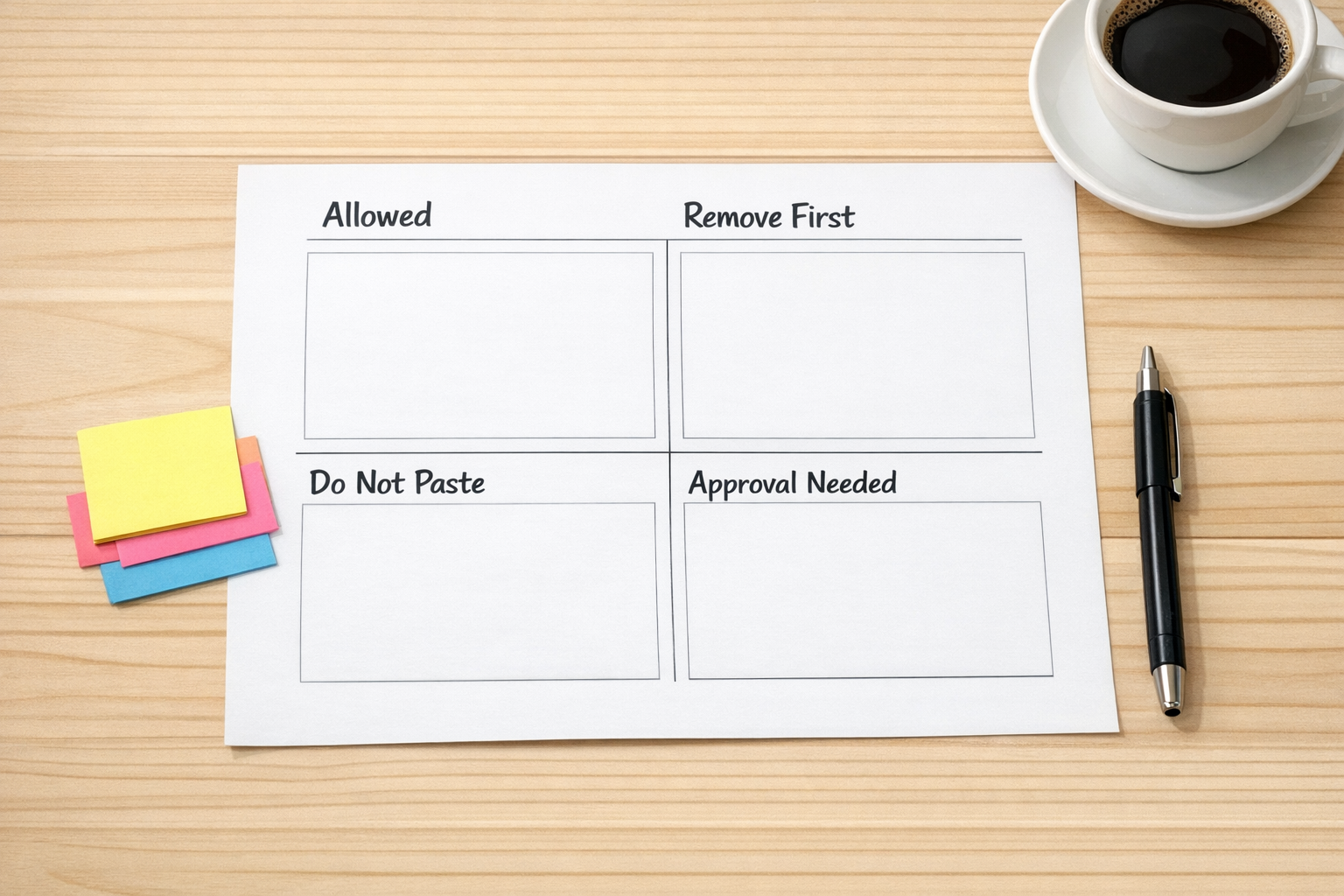
This kind of checklist is not glamorous, but it is useful. It gives people a mental pause before they paste. That pause is often enough to prevent avoidable mistakes.
Anonymization Should Be Part of the Process
Anonymization is one of the most practical habits a team can build.
The goal is to give AI the shape of the problem without giving it the sensitive details. In many cases, AI does not need the real client name, actual contract value, exact email address, or full internal document to be useful.
For example, instead of pasting a real client renewal situation with names, dates, amounts, and private details, a team member can rewrite it as:
“Draft a renewal follow-up for a client contact. The agreement ends next month. The client is concerned about support response times. Keep the tone calm, helpful, and commercially aware.”
The work still gets done, but the risk is reduced.
This can be built directly into operating procedures. If your team uses ClickUp, the task template can include a field called “AI-safe summary.” If your team uses a CRM, sales notes can include a short sanitized version for AI-assisted drafting. If your team uses Make or Zapier, automation steps can route only approved fields into AI actions.
That is the difference between casual AI use and operational AI use.
Be Careful With Connectors and App Access
One of the easiest places to create risk is app connectivity.
When an AI tool connects to email, cloud storage, chat, calendar, CRM, or project management tools, it may gain access to much more than the user intended. Even if the person only wants help finding one document, the connection may expose a broader workspace.
For a personal AI account, the safest business rule is usually simple:
Do not connect work systems to personal AI accounts.
If the business needs connected AI, build it inside an approved company environment with clear permissions, ownership, logging, and review. This applies whether the workflow touches Gmail, Outlook, Slack, Google Drive, HubSpot, GoHighLevel, Shopify, ClickUp, or any other operational system.
Connected AI can be useful. It can summarize support tickets, draft CRM follow-ups, classify leads, create tasks, or prepare handoff notes. But it should be designed intentionally, not connected casually by each person on the team.
Define Where AI Output Goes
Another common gap is output storage.
Someone uses AI to create a useful draft, summary, checklist, or plan. Then it stays in their chat history, personal notes, or private document. The rest of the team never sees it, and the business does not benefit from the improvement.
A good AI workflow defines the destination:
- Sales follow-ups go back into the CRM.
- Support summaries go into the ticket or customer record.
- Process improvements go into the SOP library.
- Project action items go into ClickUp.
- Automation ideas go into a validated backlog.
- Content drafts go into the content planning system.
AI should not become another hidden workspace. It should support the systems the business already runs on.
Build an AI Usage Workflow in Five Steps
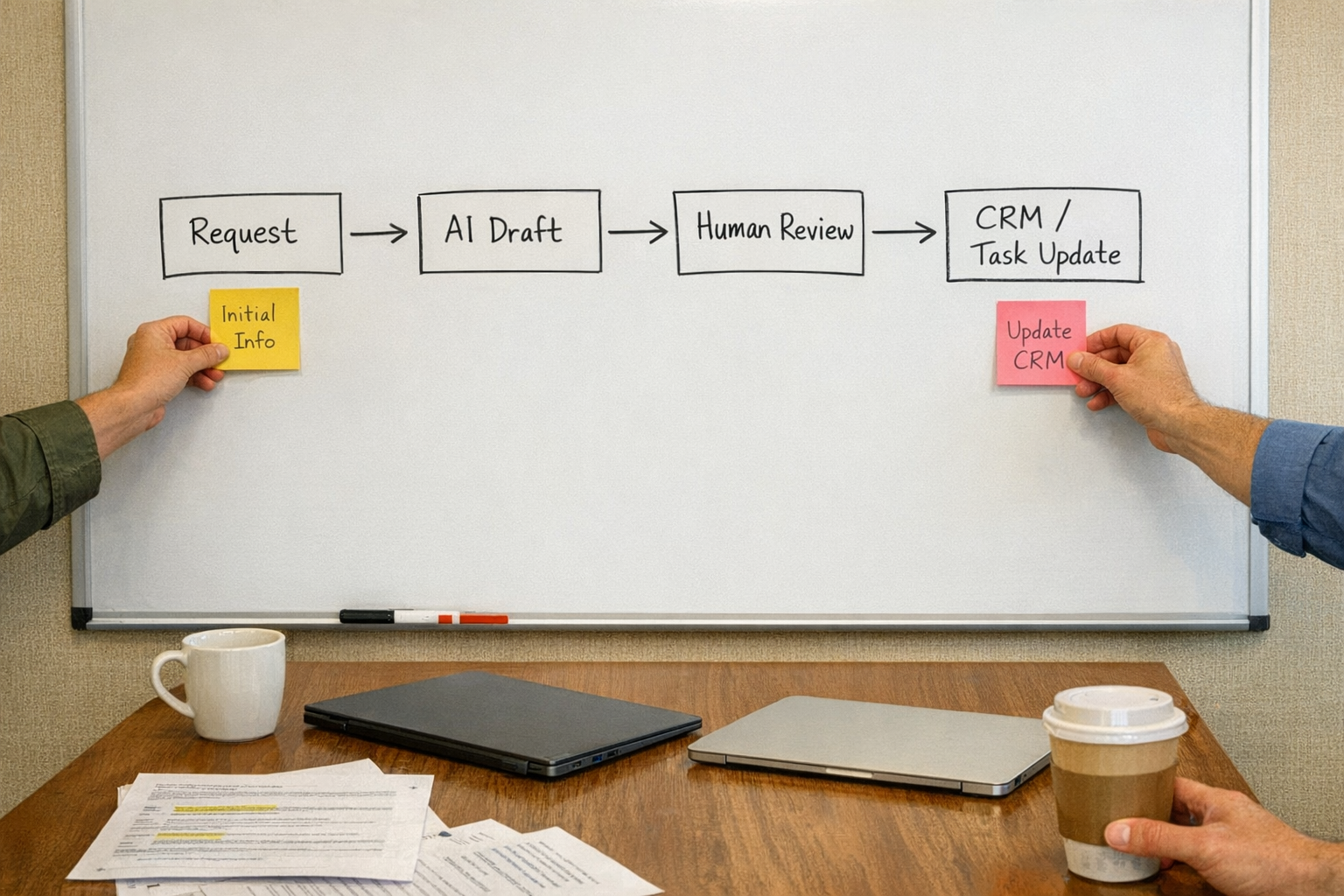
Here is a practical implementation path:
1. List the common AI use cases
Ask the team what they already use AI for or want to use it for. Keep this non-punitive. You need reality, not perfect answers.
2. Sort use cases by risk
Create three groups: safe, needs cleanup, and requires approval. This gives the team clarity without slowing every task down.
3. Create approved prompt patterns
Build reusable prompts for common work such as sales emails, task summaries, support replies, SOP drafts, and meeting follow-ups. Include reminders to remove sensitive details.
4. Define approved tools and storage locations
Make it clear which AI tools can be used, which systems outputs should return to, and who owns the workflow.
5. Review access and automations regularly
Any AI workflow with integrations should be reviewed. Check permissions, connected apps, automation logs, and whether the workflow still matches the business process.
The Goal Is Clarity, Not Fear
AI is useful when it removes work, reduces copy-paste, improves handoffs, and helps teams think through messy tasks faster. But without operational clarity, AI becomes another place where work disappears and risk accumulates.
The best AI adoption work is not only about prompts. It is about process design.
What can the team use AI for? What should never be pasted? What needs anonymization? Which systems can connect? Where should the output live? Who reviews the workflow?
When those questions are answered, AI becomes easier to use safely.
At ConsultEvo, we help businesses design practical AI, automation, CRM, ClickUp, Make, Zapier, HighLevel, Shopify, and operational workflows around how the work actually gets done. If your team is using AI informally and you want to turn that into a safer, clearer system, we can help you map and build it.